


So, you have a new VPN service provider, one that makes you feel cosy, warm and protected. But, short of suggesting all the sales speak on its pages are inaccurate. How can you, check that your VPN connection is as sold? In this article, I am going to walk you through some basic tests and checks. During which, you will find out if your connection, encryption and speed are just right. Plus, learn about leakage and how to secure your privacy.
Table of Contents
Testing a VPN Connection
“Why would you want to test your connection, after all its working, isn’t it?”
The answer to the above question is yes and no. While the majority of connections work as they should, many do not.
Why?
In some cases, problems occur with VPN clients; these problems revolve around recent updates or poor code. However, the result is, you may think you have an active connection, but the VPN’s logs show that is not so.
Unfortunately, that means, when you think you’re protected, you’re not, and that could get you into trouble.
How to Check a VPN Connection
My advice to you is to read the following instruction in order. DO NOT, read them all at once or skip through them. Instead read one, and then act on the advice, doing so has been proven to lead to fewer mistakes.
- To begin, disconnect from your VPN service
- Once disconnected, visit the NordVPN’s IP-check tool
- The Free Privacy Check on the right, will display your current IP address
- Make a note/remember those details and Re-connect your VPN
- When done refresh the page
- Next, return to Step 2 and Verify that your IP address and location is different
- You can ignore the Internet Security Warning, NordVPN shows this if it detects you are not using its VPN service.
Results
Having followed the above guide, you should have seen different IP addresses with the VPN connection off and on. Additionally, your location should have been different, although, of the two, it is only the IP address that indicates a successful connection.
Encryption are You Safe?
The point of paying for a decent VPN service is that the data being transmitted from your device and to it is private. Unfortunately, you will be Shocked to learn that a good majority of VPN’s DO NOT encrypt data-in-transit!
And that means, almost anyone with the know-how can see what you’re doing online, sites you visit, videos you watch and more. So, it goes without saying that your service needs to be checked.
Here’s How to Check If your VPN is Encrypted
To start with there are two pieces of software available that can help you. However, one is not certain to guarantee an answer to the are you safe, question? And that is called GlassWire, instead, I advise you to use Wireshark as it offers 100% encryption detection.
How to Use Wireshark
To reiterate, Wireshark may be the more complicated of the two options. But, it is also the only certain way to check data packets and determine if you have an encrypted VPN connection.
- To start, Download and install the version you require. It is available in 32-bit and 64-bit for both Mac/OSX and Windows, plus it costs nothing
- When downloaded and installed Start your VPN
- Next run the Wireshark software
- When ready, choose the Network interface that corresponds to you. That can be either Wi-Fi or Ethernet and select Record
- Now, look for Packets with the OpenVPN protocol
- Next, Right click on an OpenVPN packet choose Follow >> UDP/TCP stream and then examine it
- If the stream looks like Gibberish, it’s encrypted, if you can read it, it’s not
Now, if you can see packets that are not OpenVPN, don’t be concerned. They are likely to be data sent on your network, say between your computer and router.
IP and DNS Leaks
Another failure of some VPN’s is the exposure of IP addresses, and DNS (Domain Name System) requests. Here is information on each of them, including advice.
IPv6 Leaks
All internet connected devices now have new IPV6 and the standard IPV4, IP addresses. Unfortunately, most VPN’s have failed to catch up, and that means they only support IPV4. Regrettably, for you, that means IPV6 internet traffic is not secure outside of the VPN Tunnel. And just as with poor encryption, this could lead to your privacy and identity being compromised.
What Can You Do?
- Only use a VPN which states that it provides IPV6 leak protection
- Another option is to Disable all IPV6 traffic on your router and computer
What About DNS Leaks
Not sure what DNS stands for?
DNS or Domain Name System is a process which turns website addresses (www.yourwebsite.com) into IP addresses, so numbers. Unfortunately, an IPS (Internet service provider) will try to intercept a DNS request and then route it via its own server. And it is this which allows them to record information about your surfing habits.
Now, another unfortunate circumstance revolves around a vulnerability in DNS protocol. This vulnerability allows some VPN’s to see this as OK, but it’s not. Instead, you want your provider to block DNS leaks and route them via secure servers.
What Can You Do About It?
If you have a VPN connection that does not offer DNS leak protection, find a provider that offers it.
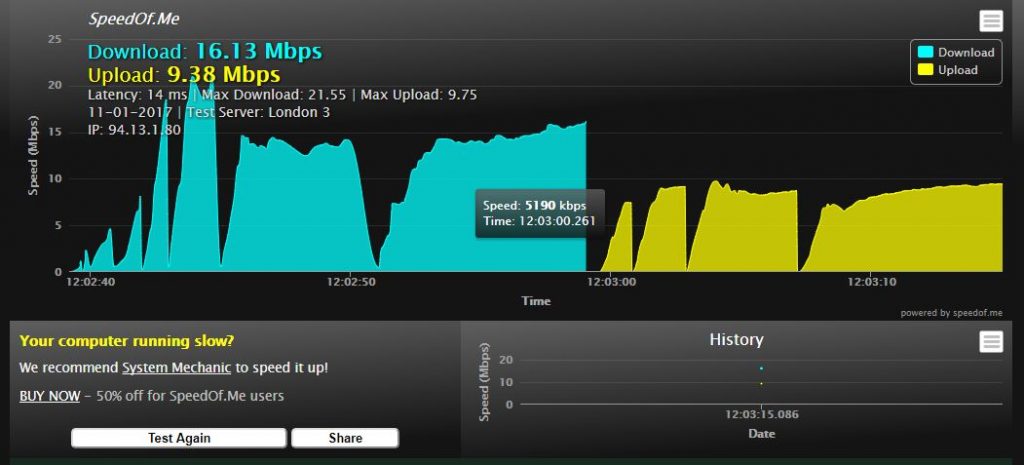
Speed Test – Check for Drop-off
One downside to using a VPN connection to protect your privacy is a drop-off in internet speed. This is something you should expect with all services; however, some are more noticeable than others.
Why?
It depends on a variety of factors, such as the distance from a server, and its load time, to the strength of your encryption. Fortunately, there are quite a few sites dedicated to testing your internet connection speed, both download and upload.
Sites that I have used are:
If you are going to use them, please follow these simple guidelines:
- Test with and without your VPN connected
- To get a true result test at least twice
- Use a single server location for each test
Final Thoughts
If after conducting the above tests and checks, you have discovered that your VPN connection, isn’t up to scratch. You have as far as I can see, two options: Contact support and ask that the problems be fixed to your satisfaction. Or change provider to one that has your privacy in mind, and offers a trial period, so that you can test again.